Talk to her out loud.
She answers out loud.
Press the phone icon, or just say her name. She hears you and answers in her own voice, in the same conversation she remembers. Speech recognition and her voice both run on your computer.
7 days free, no card and no account. Then $20 once, only if you keep her.
What you can do with her voice
- Voice calls
- A call is the same conversation as the chat, without the keyboard. What you say on a call is remembered like anything else.
- Hands-free
- Say her name, with or without "hey", to start a call. The listening happens on your computer and the audio is never saved.
- Voice messages
- Hold to record a message of up to two minutes when you would rather speak than type.
- Dictation
- Speak into the message box instead of typing, for up to ten minutes at a time.
- How she speaks
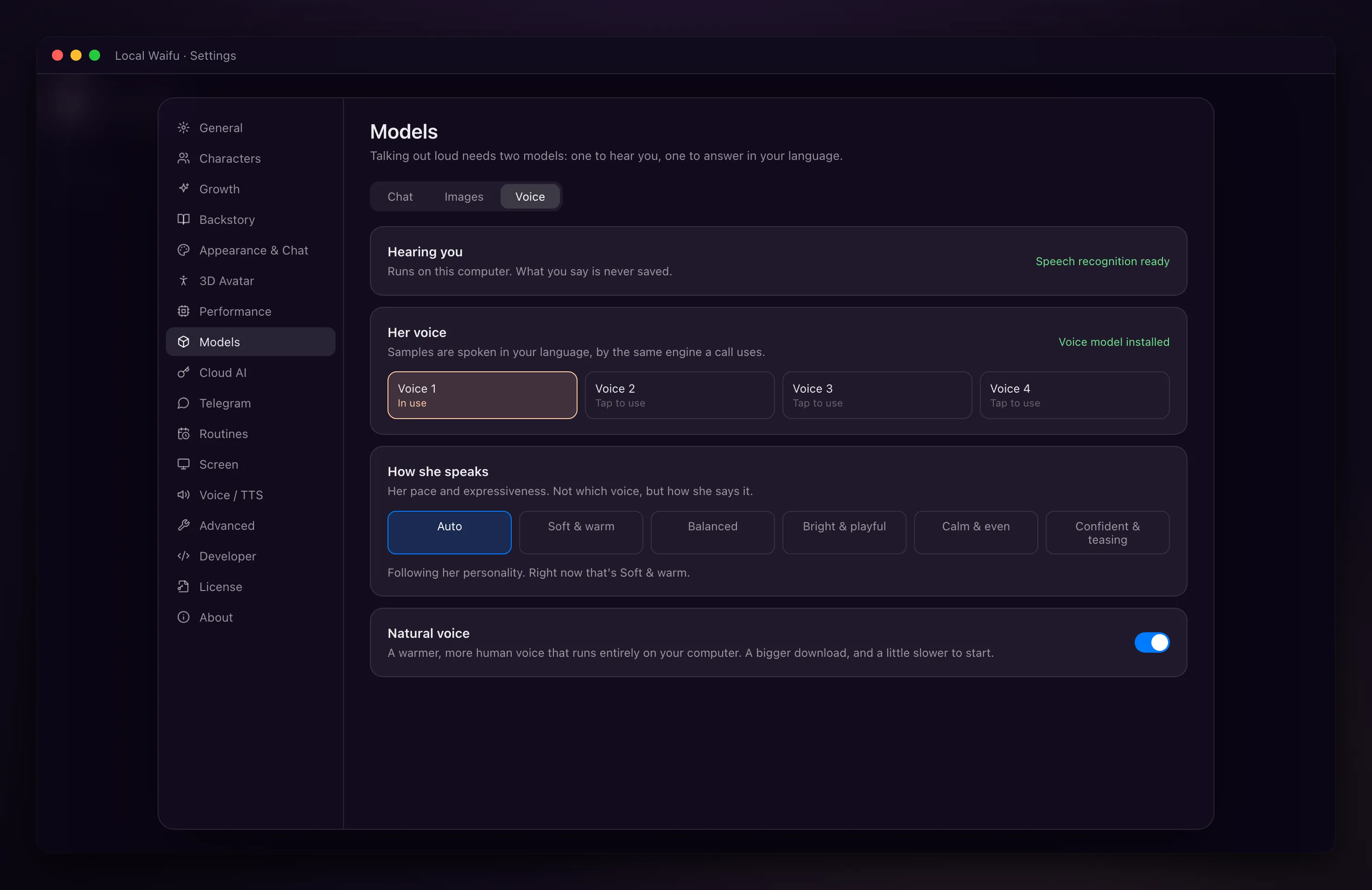
- Five styles, from soft and warm to confident and teasing. Left on Auto, her pace and expressiveness follow her personality.
- Natural voice
- An optional warmer, more human voice. It is a bigger download and takes a little longer to start speaking.
- Voice cloning
- Give her a voice from a clear 10 to 30 second recording, using the natural voice engine.
- Bedtime stories
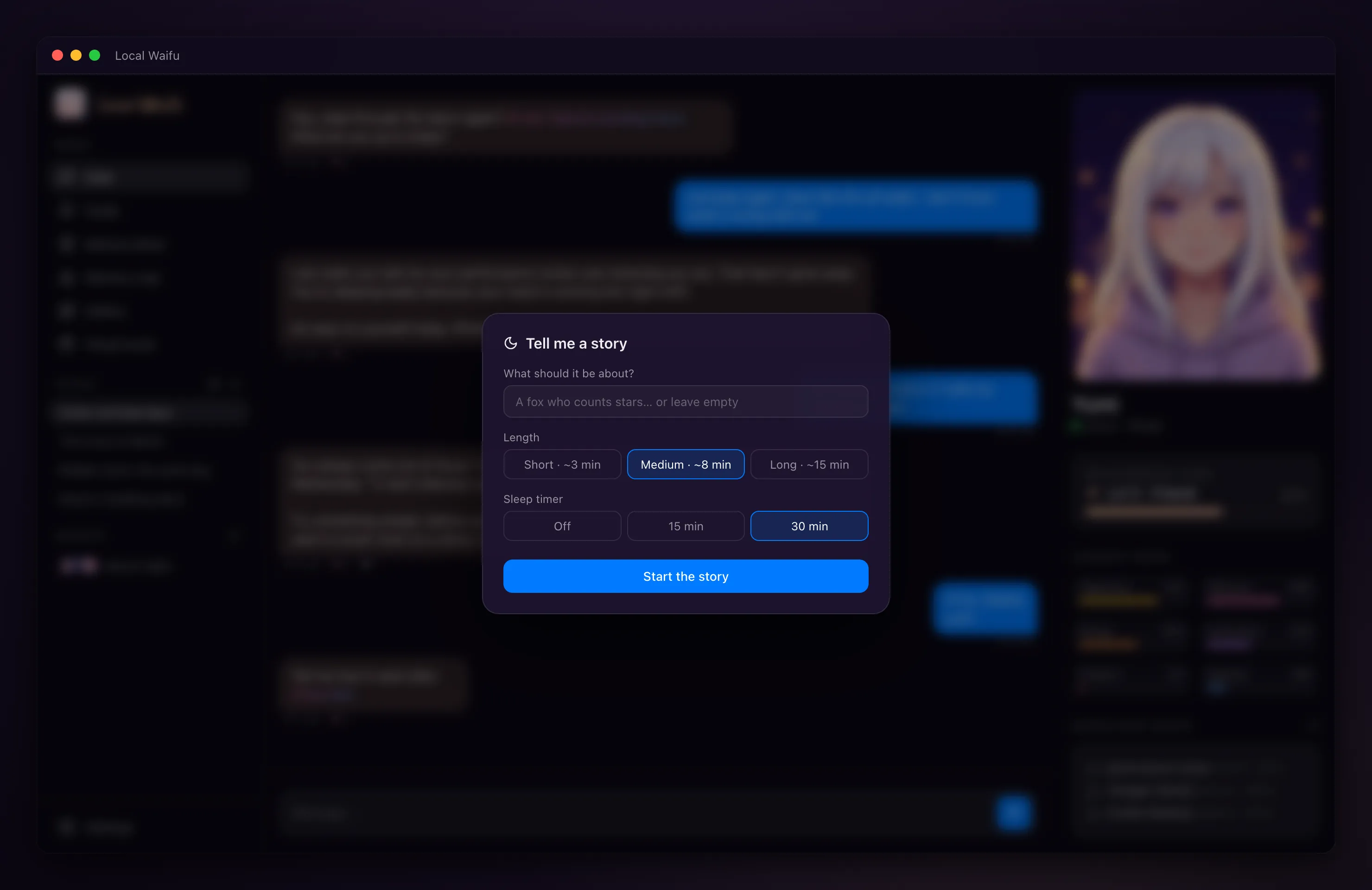
- About three, eight or fifteen minutes, on a subject you choose or none, with a sleep timer.
- Cloud voices, if you want them
- Ten speech services and ten transcription services work with your own key. They are off until you turn them on.
How to set it up
- 1
Open Settings, then Models, then Voice
Two models are needed: one to hear you, one for her voice. One button downloads both.
- 2
Pick her voice
Play the samples. They are spoken in your language by the same engine a call uses.
- 3
Start a call
Press the phone icon in the chat. Turn on hands-free if you want to start calls by saying her name.
Worth knowing before you start
- The built-in voice covers English, Polish, German, Spanish, Japanese and Korean. Other languages work through a cloud voice with your own key.
- The natural voice on a Mac needs Apple Silicon and 16 GB of RAM. On Windows it runs on the processor or an NVIDIA card.
- Voice cloning uses the natural voice engine, so it has the same requirements.
- With a local voice nothing you say leaves the computer. If you choose a cloud voice or transcriber, the audio goes to that service under your own account.
Questions people ask
Does voice work offline?
Yes. Speech recognition and the built-in voices run on your computer, so calls work without a connection once the voice models are downloaded.
Is my voice recorded or stored?
No. Audio is turned into text on your computer and discarded. Hands-free listening is processed locally and never saved.
Can I give her a specific voice?
You can pick from the built-in voices, clone one from a short recording with the natural voice engine, or use a voice from a cloud service such as ElevenLabs with your own key.
Which languages can she speak?
The built-in voice covers English, Polish, German, Spanish, Japanese and Korean. With a cloud voice she can speak whatever that service supports.
Does it work on Windows?
Yes. Voice calls, dictation, hands-free and voice cloning are on both macOS and Windows.